Well, let's test it on Debian GNU/Linux (and it should work on Ubuntu and other derivatives too)...
2016-11-23


2016-06-09
HOWTO: fix mic settings on Acer Aspire 3810T notebook in Linux
Once upon a time... You try a Linux Skype version (e. g., 4.3.0.37-1 for Debian) on Acer Aspire 3810T notebook and no sound is heard from the internal microphone.
The microphone is not muted in AlsaMixer (
Let's record some mic sound using Audacity audio editor... Here is a screenshot:
 As you can see, the right channel ("R") is simply inverted left channel ("L"); let's call that "R=-L".
Let's look at the system environment details...
Nothing interesting, except the Realtek ALC269 audio codec.
Thus, it's time to look at the microphone itself.
 Terminal markings (DATA, VDD, CLK, GND) suggest it's a digital microphone (not analog one), and it looks like a mono (1-channel) one.
Fortunately, there is a way to fix the problem: you should create a
If you're interested, you can get some info about some kernel modules:
But let's get back to the configuration.
Create, e. g., a
Let's try some model names that look usable.
External links:
The microphone is not muted in AlsaMixer (
alsamixer); in PulseAudio Volume Control (pavucontrol) mic looks OK too.Let's record some mic sound using Audacity audio editor... Here is a screenshot:

Let's look at the system environment details...
$ uname -a
Linux Notebook1 4.5.0-1-amd64 #1 SMP Debian 4.5.1-1 (2016-04-14) x86_64 GNU/Linux

$ cat /proc/asound/version
Advanced Linux Sound Architecture Driver Version k4.5.0-1-amd64.

$ dmesg | grep Acer
[    0.000000] DMI: Acer Aspire 3810T/Aspire 3810T, BIOS V1.28 08/10/2010
...

$ dmesg | grep snd_hda_codec_realtek
[    3.796475] snd_hda_codec_realtek hdaudioC0D0: autoconfig for ALC269: line_outs=1 (0x14/0x0/0x0/0x0/0x0) type:speaker
[    3.796496] snd_hda_codec_realtek hdaudioC0D0:    speaker_outs=0 (0x0/0x0/0x0/0x0/0x0)
[    3.796510] snd_hda_codec_realtek hdaudioC0D0:    hp_outs=1 (0x15/0x0/0x0/0x0/0x0)
[    3.796522] snd_hda_codec_realtek hdaudioC0D0:    mono: mono_out=0x0
[    3.796531] snd_hda_codec_realtek hdaudioC0D0:    dig-out=0x1e/0x0
[    3.796540] snd_hda_codec_realtek hdaudioC0D0:    inputs:
[    3.796550] snd_hda_codec_realtek hdaudioC0D0:      Mic=0x18
[    3.796559] snd_hda_codec_realtek hdaudioC0D0:      Internal Mic=0x12

$ dmesg | grep HDA
[    3.854039] input: HDA Digital PCBeep as /devices/pci0000:00/0000:00:1b.0/sound/card0/input13
[    3.855277] input: HDA Intel Mic as /devices/pci0000:00/0000:00:1b.0/sound/card0/input14
[    3.855365] input: HDA Intel Headphone as /devices/pci0000:00/0000:00:1b.0/sound/card0/input15
[    3.855451] input: HDA Intel HDMI/DP,pcm=3 as /devices/pci0000:00/0000:00:1b.0/sound/card0/input16

$ cat /proc/asound/pcm
00-00: ALC269 Analog : ALC269 Analog : playback 1 : capture 1
00-01: ALC269 Digital : ALC269 Digital : playback 1
00-03: HDMI 0 : HDMI 0 : playback 1

$ cat /sys/module/snd_hda_intel/parameters/model
(null),(null),(null),(null),(null),(null),(null),(null),(null),(null),(null),(null),(null),(null),(null),(null),(null),(null),(null),(null),(null),(null),(null),(null),(null),(null),(null),(null),(null),(null),(null),(null)
Thus, it's time to look at the microphone itself.

Fortunately, there is a way to fix the problem: you should create a
modprobe configuration file with appropriate settings for Intel HDA driver kernel module.If you're interested, you can get some info about some kernel modules:
$ /sbin/modinfo snd-hda-intel
...
$ /sbin/modinfo snd-hda-codec-realtek
...
Create, e. g., a
/etc/modprobe.d/sound.conf file and put an appropriate configuration string (i. e., options snd-hda-intel model=MODEL, where MODEL is a specific model string) into it:
$ sudoedit /etc/modprobe.d/sound.conf
...
- "
laptop-amic".
Some minor changes indmesgoutput:And major effects on mic sound output:$ dmesg | grep snd_hda_codec_realtek ... [ 3.803435] snd_hda_codec_realtek hdaudioC0D0: inputs: [ 3.812954] snd_hda_codec_realtek hdaudioC0D0: Mic=0x18 [ 3.817411] snd_hda_codec_realtek hdaudioC0D0: Internal Mic=0x19 [ 3.817414] snd_hda_codec_realtek hdaudioC0D0: Internal Mic=0x12
Yes, funny enough, it's a stereo low-level noise, and there's no intelligible sound (!); and that's not strange: "amic" stands for "analog microphone", so it's just a useless option for digital ones.
- "
laptop-dmic".
R=-L (no significant changes).
- "
alc269-dmic".
R=L.
- "
alc271-dmic".
R=-L (no significant changes).
- "
inv-dmic".
Some audio signal in the left channel, and no signal (zero level) in the right one (R=0).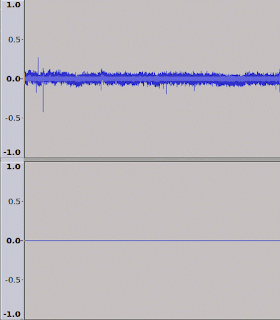


inv-dmic" represents the real configuration (if you want pseudo-stereo, you can also try "alc269-dmic"); so here is my suggested config:
$ cat /etc/modprobe.d/sound.conf
options snd-hda-intel model=inv-dmic

$ cat /sys/module/snd_hda_intel/parameters/model
inv-dmic,(null),(null),(null),(null),(null),(null),(null),(null),(null),(null),(null),(null),(null),(null),(null),(null),(null),(null),(null),(null),(null),(null),(null),(null),(null),(null),(null),(null),(null),(null),(null)
- https://git.kernel.org/cgit/linux/kernel/git/torvalds/linux.git/tree/sound/pci/hda/patch_realtek.c (kernel/git/torvalds/linux.git - Linux kernel source tree)
- ALSA - Debian Wiki
- HdaIntelSoundHowto - Community Help Wiki (Ubuntu)
2016-05-20
Software: gpm, a mouse service for Linux console
There's a nice piece of software called gpm (general purpose mouse).
It's a mouse server for Linux console. (BTW, touchpads are supported too).
In Debian (and its derivatives like Ubuntu), it's very easy to start using it by simple installation from package repositories:
And you should see a rectangular mouse pointer soon ;)
In case it gets stuck, you can try restarting the gpm service this way:
or, a more generic command if you don't use Debian:
See also: HOWTO: reload mouse driver in Linux
External links:
It's a mouse server for Linux console. (BTW, touchpads are supported too).
In Debian (and its derivatives like Ubuntu), it's very easy to start using it by simple installation from package repositories:
# apt-get install gpmIn case it gets stuck, you can try restarting the gpm service this way:
# service gpm restart# /etc/init.d/gpm restartExternal links:
- gpm - general purpose mouse (official site)
- Debian Package Tracker - gpm
---
Last updated: 2016-07-04
Last updated: 2016-07-04
2016-04-29
HOWTO: force filesystem check on reboot in a Linux system
Usually, only a superficial file system check is performed automatically on boot up, and it's sufficient; but sometimes it could be handy to force a full file system check (i. e., to run the Linux
P. S. It should then check all the filesystems enabled for checking in
References:
fsck utility) to ensure the FS is really OK.
- Classic init (SysVinit): just reboot the system with a special option:
# shutdown -rF now - systemd init: much more interesting: at the boot time, you need to append a special kernel command line parameter (e. g., you can specify it at the GRUB command line):
linux /boot/vmlinuz root=UUID=... ro fsck.mode=force
P. S. It should then check all the filesystems enabled for checking in
/etc/fstab.References:
man shutdownman systemd-fsckman fstabman fsck
2016-01-27
HOWTO: play MIDI files with VLC in Debian
It's very easy! And should also work for Ubuntu (and other Debian derivatives).
- First of all, make sure you have already installed the VLC media player:
# apt-get install vlc - Install the FluidSynth plugin:
# apt-get install vlc-plugin-fluidsynth - Enjoy!
You can open your file either with the VLC GUI, or from the CLI, e. g.:
$ vlc ~/Music/MyFavoriteSong.midi
Subscribe to:
Posts (Atom)