Showing posts with label driver. Show all posts

2016-06-09

HOWTO: fix mic settings on Acer Aspire 3810T notebook in Linux

Once upon a time... You try a Linux Skype version (e. g., 4.3.0.37-1 for Debian) on Acer Aspire 3810T notebook and no sound is heard from the internal microphone.

The microphone is not muted in AlsaMixer (alsamixer); in PulseAudio Volume Control (pavucontrol) mic looks OK too.

Let's record some mic sound using Audacity audio editor... Here is a screenshot:
As you can see, the right channel ("R") is simply inverted left channel ("L"); let's call that "R=-L".

Let's look at the system environment details...
$ uname -a
Linux Notebook1 4.5.0-1-amd64 #1 SMP Debian 4.5.1-1 (2016-04-14) x86_64 GNU/Linux

$ cat /proc/asound/version
Advanced Linux Sound Architecture Driver Version k4.5.0-1-amd64.

$ dmesg | grep Acer
[    0.000000] DMI: Acer Aspire 3810T/Aspire 3810T, BIOS V1.28 08/10/2010
...

$ dmesg | grep snd_hda_codec_realtek
[    3.796475] snd_hda_codec_realtek hdaudioC0D0: autoconfig for ALC269: line_outs=1 (0x14/0x0/0x0/0x0/0x0) type:speaker
[    3.796496] snd_hda_codec_realtek hdaudioC0D0:    speaker_outs=0 (0x0/0x0/0x0/0x0/0x0)
[    3.796510] snd_hda_codec_realtek hdaudioC0D0:    hp_outs=1 (0x15/0x0/0x0/0x0/0x0)
[    3.796522] snd_hda_codec_realtek hdaudioC0D0:    mono: mono_out=0x0
[    3.796531] snd_hda_codec_realtek hdaudioC0D0:    dig-out=0x1e/0x0
[    3.796540] snd_hda_codec_realtek hdaudioC0D0:    inputs:
[    3.796550] snd_hda_codec_realtek hdaudioC0D0:      Mic=0x18
[    3.796559] snd_hda_codec_realtek hdaudioC0D0:      Internal Mic=0x12

$ dmesg | grep HDA
[    3.854039] input: HDA Digital PCBeep as /devices/pci0000:00/0000:00:1b.0/sound/card0/input13
[    3.855277] input: HDA Intel Mic as /devices/pci0000:00/0000:00:1b.0/sound/card0/input14
[    3.855365] input: HDA Intel Headphone as /devices/pci0000:00/0000:00:1b.0/sound/card0/input15
[    3.855451] input: HDA Intel HDMI/DP,pcm=3 as /devices/pci0000:00/0000:00:1b.0/sound/card0/input16

$ cat /proc/asound/pcm
00-00: ALC269 Analog : ALC269 Analog : playback 1 : capture 1
00-01: ALC269 Digital : ALC269 Digital : playback 1
00-03: HDMI 0 : HDMI 0 : playback 1

$ cat /sys/module/snd_hda_intel/parameters/model
(null),(null),(null),(null),(null),(null),(null),(null),(null),(null),(null),(null),(null),(null),(null),(null),(null),(null),(null),(null),(null),(null),(null),(null),(null),(null),(null),(null),(null),(null),(null),(null)
Nothing interesting, except the Realtek ALC269 audio codec.

Thus, it's time to look at the microphone itself.
Terminal markings (DATA, VDD, CLK, GND) suggest it's a digital microphone (not analog one), and it looks like a mono (1-channel) one.

Fortunately, there is a way to fix the problem: you should create a modprobe configuration file with appropriate settings for Intel HDA driver kernel module.

If you're interested, you can get some info about some kernel modules:
$ /sbin/modinfo snd-hda-intel
...
$ /sbin/modinfo snd-hda-codec-realtek
...
But let's get back to the configuration.
Create, e. g., a /etc/modprobe.d/sound.conf file and put an appropriate configuration string (i. e., options snd-hda-intel model=MODEL, where MODEL is a specific model string) into it:
$ sudoedit /etc/modprobe.d/sound.conf
...
Let's try some model names that look usable.
  1. "laptop-amic".
    Some minor changes in dmesg output:
    $ dmesg | grep snd_hda_codec_realtek
    ...
    [    3.803435] snd_hda_codec_realtek hdaudioC0D0:    inputs:
    [    3.812954] snd_hda_codec_realtek hdaudioC0D0:      Mic=0x18
    [    3.817411] snd_hda_codec_realtek hdaudioC0D0:      Internal Mic=0x19
    [    3.817414] snd_hda_codec_realtek hdaudioC0D0:      Internal Mic=0x12
    
    And major effects on mic sound output:
    Yes, funny enough, it's a stereo low-level noise, and there's no intelligible sound (!); and that's not strange: "amic" stands for "analog microphone", so it's just a useless option for digital ones.
  2. "laptop-dmic".
    R=-L (no significant changes).
  3. "alc269-dmic".
    R=L.
  4. "alc271-dmic".
    R=-L (no significant changes).
  5. "inv-dmic".
    Some audio signal in the left channel, and no signal (zero level) in the right one (R=0).
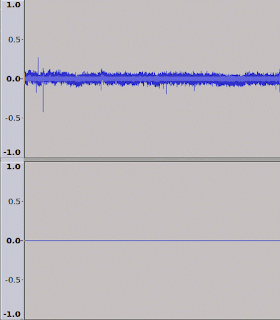
Conclusion: "inv-dmic" represents the real configuration (if you want pseudo-stereo, you can also try "alc269-dmic"); so here is my suggested config:
$ cat /etc/modprobe.d/sound.conf
options snd-hda-intel model=inv-dmic

$ cat /sys/module/snd_hda_intel/parameters/model
inv-dmic,(null),(null),(null),(null),(null),(null),(null),(null),(null),(null),(null),(null),(null),(null),(null),(null),(null),(null),(null),(null),(null),(null),(null),(null),(null),(null),(null),(null),(null),(null),(null)
External links:
      1. https://www.kernel.org/doc/Documentation/sound/alsa/HD-Audio-Models.txt
      2. https://www.kernel.org/doc/Documentation/sound/alsa/HD-Audio.txt
      3. https://www.kernel.org/doc/Documentation/sound/alsa/alsa-parameters.txt
    1. https://git.kernel.org/cgit/linux/kernel/git/torvalds/linux.git/tree/sound/pci/hda/patch_realtek.c (kernel/git/torvalds/linux.git - Linux kernel source tree)
  1. ALSA - Debian Wiki
  2. HdaIntelSoundHowto - Community Help Wiki (Ubuntu)

2016-05-20

Software: gpm, a mouse service for Linux console

There's a nice piece of software called gpm (general purpose mouse).
It's a mouse server for Linux console. (BTW, touchpads are supported too).

In Debian (and its derivatives like Ubuntu), it's very easy to start using it by simple installation from package repositories:
# apt-get install gpm
And you should see a rectangular mouse pointer soon ;)

In case it gets stuck, you can try restarting the gpm service this way:
# service gpm restart
or, a more generic command if you don't use Debian:
# /etc/init.d/gpm restart
See also: HOWTO: reload mouse driver in Linux

External links:
---
Last updated: 2016-07-04

2014-06-18

HOWTO: reload mouse driver in Linux

Sometimes your mouse device (it can be even a touchpad or a trackball) can unexpectedly get stuck [maybe it's a new bug that should be reported?!] in the middle of your work (or maybe it just didn't get recognized after plugging/unplugging/replugging it in).
In such cases, reloading the mouse driver may help (e. g., for PS/2 mouse driver, Linux kernel module is called "psmouse"):
# modprobe -r -v psmouse
# modprobe -v psmouse
You can also get info on any kernel driver modules installed in your system to support different mouse types (e. g., for serial mice, the kernel module is called "sermouse"), and also check if it's currently loaded:
$ ls /lib/modules/$(uname -r)/kernel/drivers/input/mouse
...  sermouse.ko  ...
$ /sbin/modinfo sermouse
...
$ lsmod | grep sermouse
...
Notes:
  1. you can check the dmesg log for any strange symptoms:
    $ dmesg | grep psmouse
    ...
    [    9.0123456] psmouse ... lost synchronization, throwing 2 bytes away.
  2. the trick will fail if the needed kernel module is built-in (probably only reboot can help);
  3. sometimes it's some X11 driver which causes problems (please check /var/log/Xorg.0.log);
  4. if you use your mouse in console mode, perhaps it's good to check the post about gpm.
---
Last updated: 2016-05-20

2014-06-10

HOWTO: work around SATA HDD hotplug problem (in Linux)

Sometimes some SATA controllers do not recognize an attached HDD if it was hot-plugged after the Linux system has been booted. Fortunately, there're some simple workarounds (note: it should work for some PATA controllers too).
  1. A standard "soft" solution (should work by default):
    1. Connect the HDD to the SATA controller (and make sure it doesn't get auto-recognized by the system).
    2. Force a rescan of SCSI buses:
      # for h in /sys/class/scsi_host/host*/scan; do echo "- - -" > $h; done
    3. Ensure the drive has been recognized (check the dmesg logs, run lsblk etc.) and enjoy it!
  2. A more "aggressive" method
    (note: some old SATA controller made by VIA Technologies and managed by sata_via kernel driver is used here for sample purposes; should work with any recent 2.6+ Linux kernel versions):
    1. To prevent any data loss, flush caches & unmount all the mounted partitions for all the drives connected to any VIA SATA controller(s) installed on the affected system!
    2. Remove the kernel driver module (verbosity is helpful sometimes):
      # modprobe -v -r sata_via
    3. Physically attach (or detach) any drives to the VIA SATA controller.
    4. Re-insert the kernel module:
      # modprobe -v sata_via
    5. Enjoy!
References:
  1. Scanning Storage Interconnects - RHEL7 Storage Administration Guide
---
Last updated: 2014-06-20

2013-02-05

Qualcomm Atheros device driver downloads site

Atheros has been acquired by Qualcomm, so currently the drivers for Atheros AR81xx and Lx network devices can be downloaded from Qualcomm Atheros corporate customer portal:
(these URLs seem to be interchangeable).

2011-09-21

Few notes about using Canon LBP CAPT laser printers in Linux / *nix

LBP means "laser beam printer" and CAPT does "Canon advanced printing technology".

CAPT devices are some kind of "Windows GDI [Graphics Device Interface] printers". All the RIP [Raster Image Processing] for these printers is done by the driver installed on the host computer, which allows the printer itself to stay relatively "dumb" and inexpensive. They use some proprietary / undocumented protocols called SCoA ("smart compression architecture") and HiSCoA ("high" version, probably) for data compression and communication.

The official Linux CAPT drivers are closed-source with some open-source parts. They support mainly RPM-based (like RHEL, Fedora and openSUSE) and DEB-based (like Debian and Ubuntu) Linux distributions.
CUPS carries out the standard PostScript print processing work, the rest is done by the CAPT driver part itself (and it has some bugs and limitations).
Some instructions about configuring the CAPT printers in Ubuntu can be found here:
Note. It's quite interesting that LBP-810 is unofficially supported by the LBP-1120 driver.

AFAIK, currently the most up-to-date version of official Linux CAPT driver is 2.71 (May 2017).
  1. Canon South & Southeast Asia ("Issue Number : 0100459601");
  2. Canon Australia support website ("Issue Number : 0100459602");
  3. Canon Europe support website (it's called "Download: 0100459604", but unfortunately I can't find a more specific generic direct link; please try to search using your printer model).
(Sometimes, some regional sites can have some delays in version release, so it's better to check multiple download links above).

Also, some projects do exist in attempt to develop alternative, free & open source Linux / *NIX drivers with some help of reverse engineering.
  1. Canon LBP-810 / LBP-1120 CAPT Linux driver (inactive; there's also a Canon LBP-660 / LBP-460 Linux driver there).
  2. Unofficial LBP-3010 CAPT3 Solaris driver at SourceForge (another inactive project).
  3. captdriver is a project somewhat inspired by the preceding ones; initially was aimed at LBP-2900, support planned for LBP-810 / LBP-1120 and newer printers like LBP-3000 etc.
    1. GitHub - agalakhov/captdriver: Driver for Canon CAPT printers
    2. GitHub - agalakhov/anticapt: CAPT reverse engineer scratch repo
    3. foo2capt [old versions at SourceForge]
    4. Canon LBP-2900 и другие CAPT-принтеры - ПИШУ ДРАЙВЕР [a discussion in Russian on the LINUX.ORG.RU forum]
---
Last updated: 2017-07-15