The microphone is not muted in AlsaMixer (
alsamixer); in PulseAudio Volume Control (pavucontrol) mic looks OK too.Let's record some mic sound using Audacity audio editor... Here is a screenshot:

Let's look at the system environment details...
$ uname -a
Linux Notebook1 4.5.0-1-amd64 #1 SMP Debian 4.5.1-1 (2016-04-14) x86_64 GNU/Linux

$ cat /proc/asound/version
Advanced Linux Sound Architecture Driver Version k4.5.0-1-amd64.

$ dmesg | grep Acer
[    0.000000] DMI: Acer Aspire 3810T/Aspire 3810T, BIOS V1.28 08/10/2010
...

$ dmesg | grep snd_hda_codec_realtek
[    3.796475] snd_hda_codec_realtek hdaudioC0D0: autoconfig for ALC269: line_outs=1 (0x14/0x0/0x0/0x0/0x0) type:speaker
[    3.796496] snd_hda_codec_realtek hdaudioC0D0:    speaker_outs=0 (0x0/0x0/0x0/0x0/0x0)
[    3.796510] snd_hda_codec_realtek hdaudioC0D0:    hp_outs=1 (0x15/0x0/0x0/0x0/0x0)
[    3.796522] snd_hda_codec_realtek hdaudioC0D0:    mono: mono_out=0x0
[    3.796531] snd_hda_codec_realtek hdaudioC0D0:    dig-out=0x1e/0x0
[    3.796540] snd_hda_codec_realtek hdaudioC0D0:    inputs:
[    3.796550] snd_hda_codec_realtek hdaudioC0D0:      Mic=0x18
[    3.796559] snd_hda_codec_realtek hdaudioC0D0:      Internal Mic=0x12

$ dmesg | grep HDA
[    3.854039] input: HDA Digital PCBeep as /devices/pci0000:00/0000:00:1b.0/sound/card0/input13
[    3.855277] input: HDA Intel Mic as /devices/pci0000:00/0000:00:1b.0/sound/card0/input14
[    3.855365] input: HDA Intel Headphone as /devices/pci0000:00/0000:00:1b.0/sound/card0/input15
[    3.855451] input: HDA Intel HDMI/DP,pcm=3 as /devices/pci0000:00/0000:00:1b.0/sound/card0/input16

$ cat /proc/asound/pcm
00-00: ALC269 Analog : ALC269 Analog : playback 1 : capture 1
00-01: ALC269 Digital : ALC269 Digital : playback 1
00-03: HDMI 0 : HDMI 0 : playback 1

$ cat /sys/module/snd_hda_intel/parameters/model
(null),(null),(null),(null),(null),(null),(null),(null),(null),(null),(null),(null),(null),(null),(null),(null),(null),(null),(null),(null),(null),(null),(null),(null),(null),(null),(null),(null),(null),(null),(null),(null)
Thus, it's time to look at the microphone itself.

Fortunately, there is a way to fix the problem: you should create a
modprobe configuration file with appropriate settings for Intel HDA driver kernel module.If you're interested, you can get some info about some kernel modules:
$ /sbin/modinfo snd-hda-intel
...
$ /sbin/modinfo snd-hda-codec-realtek
...
Create, e. g., a
/etc/modprobe.d/sound.conf file and put an appropriate configuration string (i. e., options snd-hda-intel model=MODEL, where MODEL is a specific model string) into it:
$ sudoedit /etc/modprobe.d/sound.conf
...
- "
laptop-amic".
Some minor changes indmesgoutput:And major effects on mic sound output:$ dmesg | grep snd_hda_codec_realtek ... [ 3.803435] snd_hda_codec_realtek hdaudioC0D0: inputs: [ 3.812954] snd_hda_codec_realtek hdaudioC0D0: Mic=0x18 [ 3.817411] snd_hda_codec_realtek hdaudioC0D0: Internal Mic=0x19 [ 3.817414] snd_hda_codec_realtek hdaudioC0D0: Internal Mic=0x12
Yes, funny enough, it's a stereo low-level noise, and there's no intelligible sound (!); and that's not strange: "amic" stands for "analog microphone", so it's just a useless option for digital ones.
- "
laptop-dmic".
R=-L (no significant changes).
- "
alc269-dmic".
R=L.
- "
alc271-dmic".
R=-L (no significant changes).
- "
inv-dmic".
Some audio signal in the left channel, and no signal (zero level) in the right one (R=0).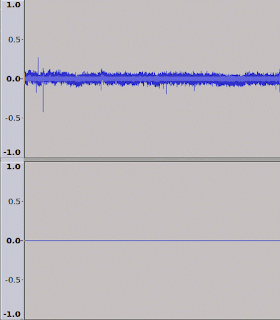


inv-dmic" represents the real configuration (if you want pseudo-stereo, you can also try "alc269-dmic"); so here is my suggested config:
$ cat /etc/modprobe.d/sound.conf
options snd-hda-intel model=inv-dmic

$ cat /sys/module/snd_hda_intel/parameters/model
inv-dmic,(null),(null),(null),(null),(null),(null),(null),(null),(null),(null),(null),(null),(null),(null),(null),(null),(null),(null),(null),(null),(null),(null),(null),(null),(null),(null),(null),(null),(null),(null),(null)
- https://git.kernel.org/cgit/linux/kernel/git/torvalds/linux.git/tree/sound/pci/hda/patch_realtek.c (kernel/git/torvalds/linux.git - Linux kernel source tree)
- ALSA - Debian Wiki
- HdaIntelSoundHowto - Community Help Wiki (Ubuntu)

